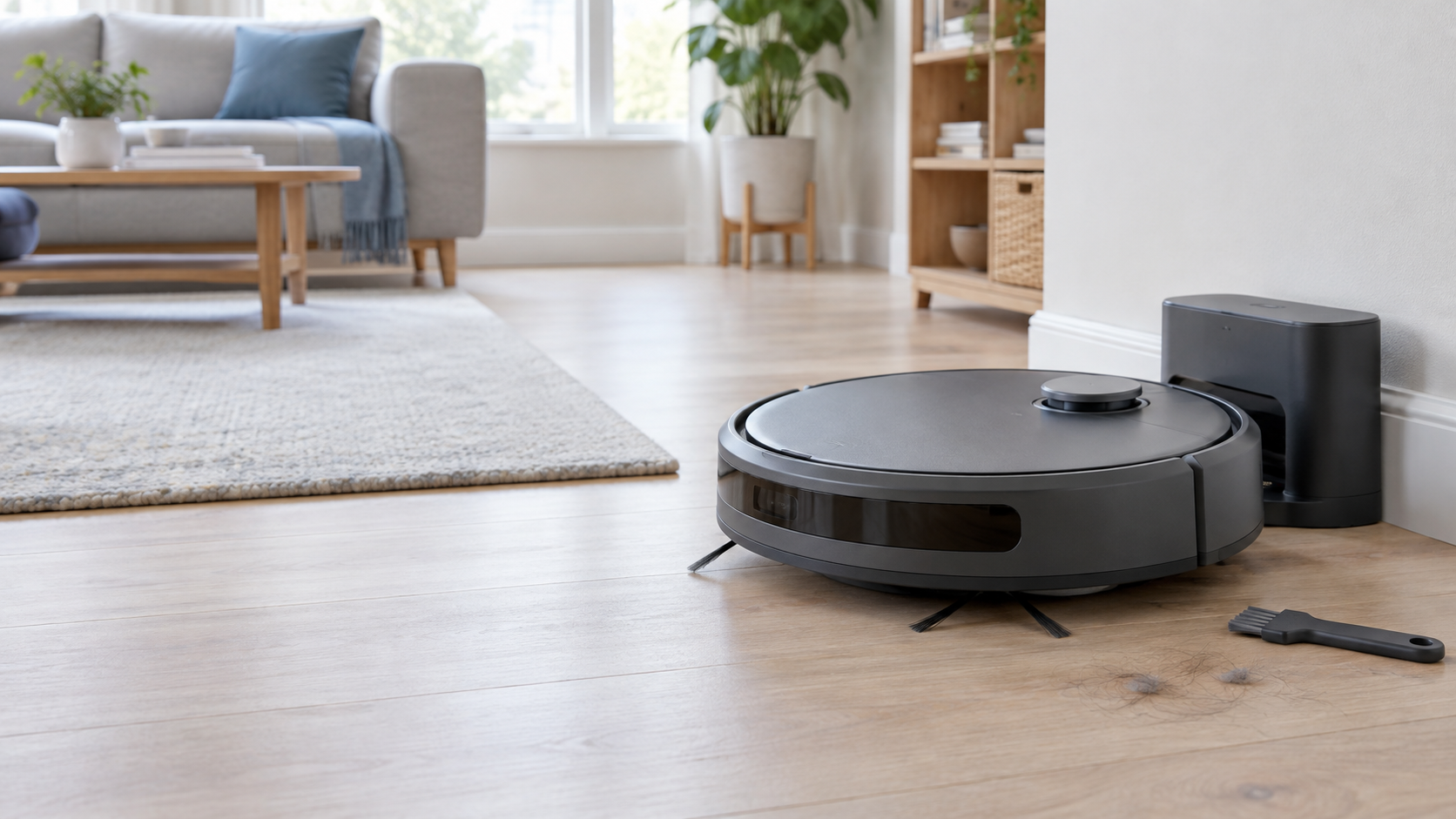
A safe place to begin is with simple external checks, stopping before any internal repair. This guide works through symptoms such as a robot vacuum not charging, not docking or repeatedly stopping. It also covers a robot vacuum offline in the app and a mop that isn’t dispensing water.
Procedures differ between brands and models, so there is no single set of fixes for every robot. Where guidance comes from one manufacturer, we name it and say which model or product family it covers. Your own manual and the support page for your exact model always come first. Bot ’n’ Brush conducted no hands-on testing for this guide.
Stop using your robot vacuum immediately if…
- There is smoke or active fire. Raise the alarm, get out, close doors behind you if possible, stay out and call 999. Contact the manufacturer or retailer afterwards.
- The battery or robot is very hot, or the battery looks swollen or lumpy.
- You hear hissing or cracking, or something is leaking from the robot or battery.
- There is an unusual chemical or burning smell, or you see sparking.
- The plug, cable, charger or dock is cracked or damaged.
- Water has got into electrical parts of the robot, charger or dock.
For any of these signs without fire, stop using and charging the robot. Do not open it, tamper with the battery or attempt a repair. Contact the manufacturer or retailer.
Sources: Electrical Safety First, London Fire Brigade and GOV.UK Fire Kills. The Fire Kills page is about e-bike and e-scooter batteries, so it is used here cautiously for lithium-ion warning signs and the emergency wording.
Start with these checks
Work through these in order. Later sections add detail for specific symptoms.
- Read the app message or error code. Codes can mean different things on different brands and models.
- Confirm that the robot and dock have power.
- Look for visible damage, water or battery-warning signs. If you see any, go back to the safety warning.
- Remove obvious floor obstructions.
- Check the accessible parts: bins, bags, brushes, wheels, sensors and tanks.
- Check the app, map and cleaning settings.
- Use only your exact model’s official restart or reset procedure. Do not borrow another brand’s steps.
- Stop before opening the robot, battery or powered dock.
Robot vacuum not turning on or charging
If your robot vacuum is not charging, begin with what you can see.
Power and visible damage
Check that the dock is plugged in, the cable is fully seated at both ends and nothing looks damaged. UK electrical-safety guidance says that if you notice cracks or damage you should switch off and contact the retailer or manufacturer. It also says to use only the supplied charger or a compatible replacement from the manufacturer (Electrical Safety First).
iRobot. iRobot publishes a charging error chart for Roomba and Braava models. It groups charging errors into families, so the right fix depends on your exact family. For some of them it points to cleaning the charging contacts. If you need to contact iRobot support, have your serial number and proof of purchase ready.
Roborock. Roborock’s support article on error 13 treats it as a charging error. Its guidance covers the charging contacts, the dock indicator and cable seating. It also suggests unplugging the dock for about two minutes and trying another outlet. The article names no model, so treat it as Roborock guidance, not a rule for every brand.
Charging contacts
Cleaning methods differ by model, so there is no single method to follow:
- For the Roomba 900 series, iRobot’s robot care page describes wiping the contacts with a clean, dry cloth.
- The Roomba 600 series has a different procedure in iRobot’s 600 series care guide. If you have a 600 series, follow that page, not the 900 series method.
- Whichever model you have, unplug the dock before cleaning and do not bend the contacts.
Charging habits
General UK lithium-battery safety guidance advises disconnecting chargers once charging is complete and not charging while you are asleep or out (London Fire Brigade). That is general battery advice, not an instruction for any particular robot vacuum. Follow the charging and docking instructions in the manual for your exact model.
If it still won’t charge. If these external checks fail, stop and contact the manufacturer or retailer. Do not open the robot or remove the battery.
Robot vacuum cannot find its dock
If your robot vacuum is not docking, start by checking power, placement and the map.
- Check that the dock is powered and positioned as its manual describes.
- Check for an obvious obstruction in the robot’s path to the dock.
ECOVACS
ECOVACS UK’s dock page covers removing any protective film, placing the dock as the manual describes and testing the return to the dock. If that fails, it says you can move the dock and try again. The page does not state a model.
iRobot
iRobot’s Smart Maps guide advises against placing Keep Out Zones near the dock, and does not recommend moving the dock to another floor. Its robots use the base as a reference for the map, so a moved dock can cause a mismatch. Behaviour depends on the model, so check the guide’s model tables.
The two brands treat a moved dock differently, so do not assume your robot follows either pattern. If it still cannot find the dock, use the exact-model steps in your manual or contact support. For map problems after a move, see the maps section below.
Robot vacuum stops or gets stuck
If your robot vacuum keeps stopping, possible checks include visible obstructions, accessible wheels and brushes, and the app’s battery status.
- Floor clutter. Clear cables, clothing and loose objects from the robot’s path.
- Wheels and brushes. See the brush and wheel section below for brand-specific checks.
- Keep Out Zones. In the app, check that a Keep Out Zone is not blocking the route (iRobot Smart Maps).
- Lighting. iRobot’s Roomba j Series page says lighting matters for camera-navigation models. That advice is for those models.
- Low battery. The same iRobot page and ECOVACS’ brush pages describe robots returning to the dock when the battery is low. Check your own model’s behaviour.
Never disable cliff sensors or other safety systems to get past a problem. If accessible parts are clean and the stopping continues, contact the manufacturer’s support.
Robot vacuum is not picking up dirt
If your robot vacuum is not picking up dirt, check the parts you can reach without tools:
- Bin. Empty it.
- Dust bag. Check that it is not full and is correctly fitted.
- Filter. Clean it as your manual describes.
- Brushes. Remove hair and debris.
- Dust path. Check the user-accessible path from brush to bin for blockages.
Filter rules differ by model. eufy’s guidance for the Auto-Empty C10 includes drying a cleaned filter for 24 hours, and that applies to the C10. iRobot’s 600 series guide says that series’ filters are not washable. Check your own model before washing a filter.
A worn or damaged consumable can be replaced, but a consumable will not fix an internal fault. If everything you can reach is clean and pickup is still poor, contact support.
Brush or wheels not moving
Treat the main brush, side brush and drive wheels as three separate problems.
Main brush
ECOVACS UK’s main-brush page does not state a model. Check the brush for tangles and debris, and refit it correctly. Do not apply the side-brush behaviour below to the main brush.
Side brush
ECOVACS UK’s side-brush page explains that side brushes can rotate slowly, or not at all, in some situations, including when a low battery sends the robot back to the dock. This is described for the side brush only. Check that it is correctly installed and not tangled.
Drive wheels
ECOVACS UK’s wheel page says to power off the robot, turn it over gently and rotate the wheels to clear tangles. iRobot’s care guides cover wheel checks for the 600 series and 900 series.
If the part is clean but still does not work, stop. Do not take apart the wheel module or motor. Contact support.
Robot vacuum is unusually noisy
Stop the robot first, then check only what you can reach:
- Brushes and wheels, for tangles or trapped debris.
- The bin, for debris.
- Any removable part that may not be fitted properly. Refit it as your manual describes.
Do not try to diagnose a motor or fan fault. Stop using the robot and contact the manufacturer or retailer if you notice grinding or persistent noise after the accessible parts are clean. Do the same for a burning smell or signs of electrical trouble such as sparking. UK electrical-safety guidance says a burning smell or sparking means you should switch off and contact the retailer or manufacturer (Electrical Safety First).
Sensor or navigation problems
Check accessible sensors and wheels using the instructions for your exact model. The manufacturers’ guidance is model-specific:
- iRobot has care guides for the 600 series, 900 series and Roomba j7. Each describes sensor and wheel care for its own models. The cited iRobot care guides advise against spraying liquid into sensor openings. Follow the care instructions for your exact model.
- Cliff sensors: Roborock’s support guidance for error 4 is on a German-language EU page that names no model. It says to wipe the cliff sensors and to avoid dark or high-pile carpet. Do not assume it applies to UK models.
- Lighting: this applies to camera-navigation models such as the iRobot j7.
No one cleaning method suits every sensor on every model. Never bypass a sensor or safety system. If the fault persists, contact the manufacturer.
Robot vacuum will not connect to Wi-Fi
This section uses only ECOVACS UK and eufy UK guidance. If your robot vacuum is offline in the app, try these in order:
- Refresh and reopen the app. ECOVACS UK’s offline page says to refresh the product list and fully close and reopen the app. It also suggests updating the app and checking the robot’s Wi-Fi indicator. That page does not state a model.
- Check the network. ECOVACS refers to a 2.4G network and password. Move the robot nearer the router.
- Check power and restart. eufy’s RoboVac offline page says a robot shows as offline if it has no power or its charging base is not connected to power. Its restart step is to turn the robot off for five seconds.
- Reconfigure if your network details changed. If you have changed the router name or password, reconfigure the robot’s network connection.
These pages do not cover router security, encryption or channel settings, so do not change them as part of this process. If the official process does not work, contact the manufacturer’s support.
Robot vacuum map is missing or wrong
A moved dock or a major room change can affect mapping on the models covered by the cited guidance. Keep these actions distinct, because they are not the same thing:
- Reboot: restarting the robot.
- Network reconfiguration: reconnecting the robot to Wi-Fi.
- Map restoration: bringing back a saved map.
- Map deletion: removing the map.
- Remapping: creating a new map.
- Factory reset: a full reset, which is not covered here.
Where the manufacturer offers a saved-map restoration option, try that documented option before deleting the map:
- ECOVACS UK’s map guidance describes restoring a saved map from Map Settings, which brings back rooms and settings. The page does not state a model.
- iRobot’s Smart Maps guide describes updating the Smart Map using a previous Clean Map report. Its procedures vary by model, so follow the guide’s tables.
If you delete a map, follow your exact model’s instructions for creating a replacement.
Factory reset. We do not give factory-reset instructions. What a reset erases varies by brand and model, so use your manufacturer’s official instructions for your exact model.
Self-emptying dock is not working
Self-emptying dock behaviour is model-specific. Check the accessible things first, and stop before any internal access.
- Bag. Check that it is not full, missing or badly fitted. eufy’s C10 guidance covers bags, filters and brushes on that model.
- User-accessible blockages. Clear the bin and port your manual says you can reach.
- Short run or very low battery. eufy’s E20 page says auto-emptying does not start if the run was under 10 minutes or the battery was under 2%. That applies to the E20 only.
- Do Not Disturb. The same E20 page lists Do Not Disturb as a reason emptying is skipped.
- Mopping module. eufy’s L35/LR30 guidance says a fitted mop module disables auto-empty on those models only.
- iRobot Combo 10 Max dock. iRobot’s dock care page and error code page cover that dock only.
Do not open any dock panel or internal part. Contact the manufacturer if the fault continues.
Robot mop is not dispensing water
If your robot vacuum mop is not dispensing water, check the removable and visible parts:
- Tank installation. Check that the water tank is fitted properly.
- Clean-water level. Make sure the clean-water tank has water in it.
- Dirty-water tank. Empty it if it is full. ECOVACS UK’s page covers a full cleaning sink on its mop-station models.
- Seals. Check the tank seals.
- Mop module. Refit it as your manual describes. eufy’s L35/LR30 page covers those models.
Dreame example. Dreame’s no-water guidance is international and model-dependent. It includes checking that the tank is recognised and clearing the water outlets. Treat it as a Dreame-specific example.
Liquids. Approved liquids vary by model. Roborock’s support page says only Roborock-branded cleaner should go in its clean-water tank. iRobot’s dock care page for the Combo 10 Max dock refers to water or a compatible cleaning solution. Check your own model before adding anything.
Leaks. If a dock leaks, stop using it and contact the manufacturer. For the Combo 10 Max dock, iRobot’s error code page says a leaking dock likely needs replacing. Do not attempt pump or plumbing repairs.
Battery runtime has fallen
If your robot vacuum cleans for less time than it used to, check these in order:
- Look at the app or error message.
- Note how the robot charges. GOV.UK Fire Kills lists a battery that does not fully charge, or takes longer to charge, as a warning sign. That page is about e-bike and e-scooter batteries, so use it cautiously.
- Use your exact model’s support guidance. Runtime advice depends on the model.
- Stop if you see any battery warning sign from the safety warning.
Do not open the robot or try to repair the battery. If the shorter runtime continues, contact the manufacturer or retailer.
Error messages and firmware updates
Error codes differ between brands and models, so do not assume a code means the same on another robot. Two limited examples:
- Roborock’s error 13 is a charging error, and its error 4 concerns cliff sensors (see the sensor section for that page’s limits).
- iRobot sorts charging errors into families in its charging error chart.
Check your exact manual or app for the meaning of your code.
Firmware. iRobot’s update page says a Wi-Fi connected robot updates automatically when a new version is available, provided it is connected to Wi-Fi and on its Home Base. The page displayed only limited text, so we cite only the conditions visible on it. If an update seems stuck, contact iRobot customer care.
When to repair, replace or contact the retailer
Contact the manufacturer or retailer if you see any immediate safety sign, or suspect an internal electrical or battery fault. Do the same if a fault returns after you have done the checks your manual allows.
Keep your proof of purchase. Roborock UK’s warranty requires it, and iRobot asks you to have it ready when contacting support.
A manufacturer guarantee is separate from any statutory rights. Roborock UK’s warranty says it applies alongside statutory rights, excludes consumables and batteries, and covers products bought from its own website. Citizens Advice says that if something you have bought is faulty you may be entitled to a refund, repair or replacement. It also says rights generally do not cover wear and tear, accidents or misuse, and that its page applies to England (Citizens Advice). For wider help, see GOV.UK’s consumer rights page.
You can check whether a product has been recalled in the GOV.UK product safety alerts and recalls list.
Consider repair or replacement only after the checks above and after looking at your guarantee and retailer options.
This is general information, not legal advice.
Frequently asked questions
Why is my robot vacuum not charging?
Check dock power, cable seating and visible damage first. Some manufacturers also point to the charging contacts, and the method depends on the model. If checks fail, contact the manufacturer or retailer without opening the battery.
Why does it keep returning to its dock?
iRobot and ECOVACS both describe robots returning to the dock when the battery is low. Check the app message and your model’s guidance.
Why has it lost its map?
A moved dock or major room change can affect mapping on the models covered by iRobot’s and ECOVACS’ guidance. Where your manufacturer offers a documented restore option, try it before deleting the map.
Can I put floor cleaner in the water tank?
Only if your manufacturer approves it for your exact model. Roborock, for example, allows only its own branded cleaner in its clean-water tank.
Why is the side brush not spinning?
Check that it is fitted correctly and not tangled. ECOVACS describes a side brush rotating slowly or not at all in some situations, including after a low-battery return to the dock. That does not apply to the main brush.
Why is the self-emptying dock not working?
Check the bag, accessible blockages and your app settings. For eufy, short runs, very low battery, Do Not Disturb and a fitted mop module can stop emptying on the specific models named above.
Should I factory-reset it?
Not as a first step. Rebooting, network reconfiguration, map restoration and map deletion are different actions from a factory reset. Use your manufacturer’s instructions for your exact model.
When should I stop using it immediately?
See the safety warning at the top of this article.
Methodology
Bot ’n’ Brush did not conduct hands-on testing for this guide. The article is based on official manufacturer support material and authoritative UK safety guidance. Procedures differ between brands and models, so check the official manual and support page for your exact product.